 Otag

Where you add them
In Otag, open Settings, then Profile, and switch to Decorations. Each kind has a row of tiles: the built-in ones first, then Yours, then a group for each of your servers that has a set of its own.
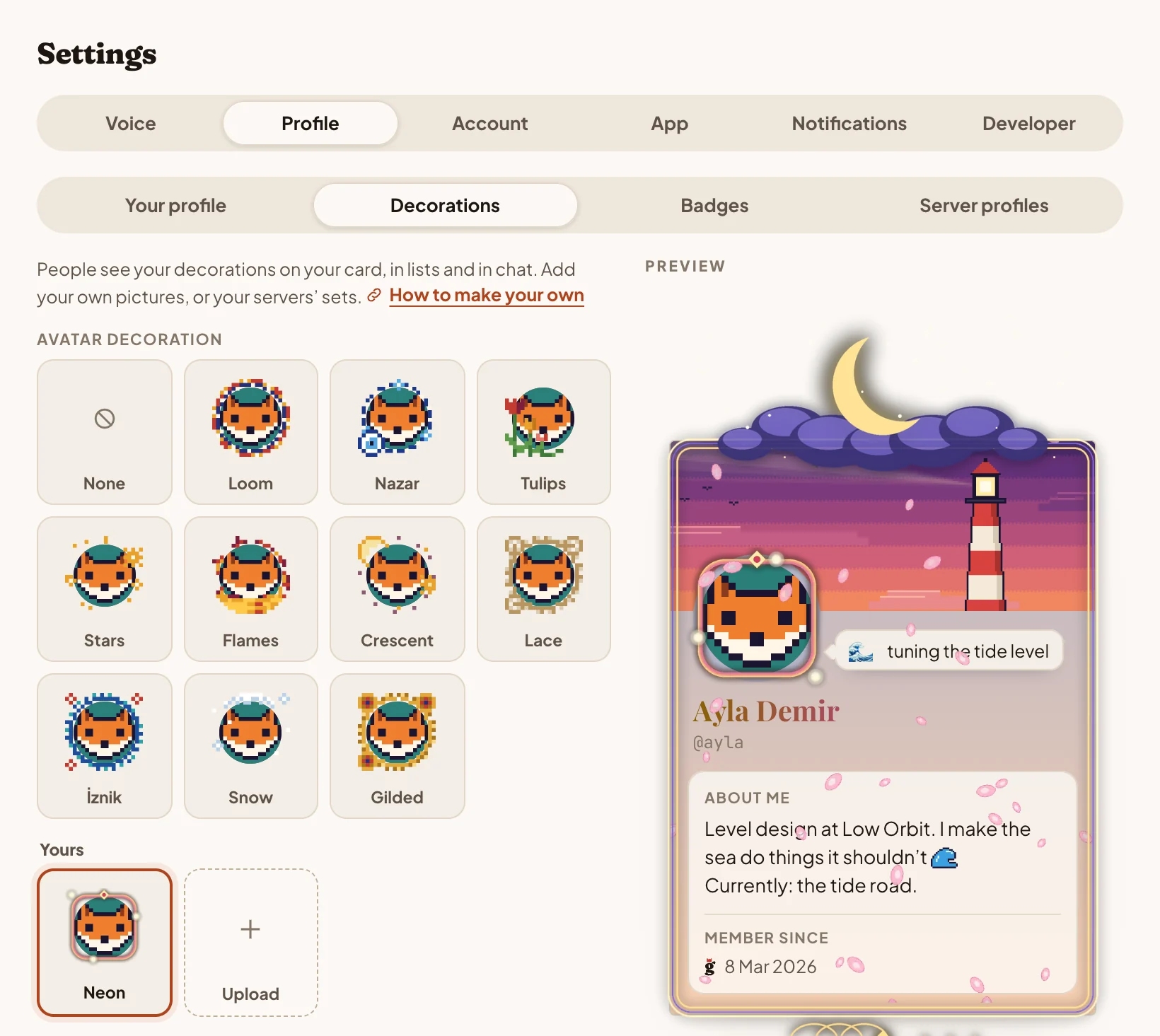
- Under Yours, pick Upload in the row of the kind you made.
- Choose a picture. Otag shows it on you straight away, in the places it will show.
- Lay it out. A nameplate asks for a ground color, an effect for where on the card it plays, and a frame for where the card sits in it. Each is explained below.
- Give it a name. If one of your servers lets you add to its set, Add it to chooses between your own and that server’s.
- Upload, pick it, and Save.
It shows to everyone straight away; nobody has to approve it first. Each upload window links to its part of this guide.
Before you draw
Each decoration is one picture: a PNG, GIF or WebP, and for a nameplate a JPEG too. Otag checks its size when you upload it.
| Kind | Draw it at | Largest side | File size |
|---|---|---|---|
| Avatar decoration | 512 × 512, square | 1024 px | 1 MB |
| Nameplate | 600 × 120 | 1600 px | 1 MB |
| Profile effect | 680 wide, any height | 1600 px | 4 MB |
| Card frame | the card’s place 680 wide | 2048 px | 2 MB |
- Keep it see-through where it should be. A decoration sits over your avatar, an effect over your card, and a frame round it: save with transparency and keep their middles clear.
- Draw at twice the size it shows. Otag scales pictures to fit, and a big drawing keeps its edges sharp on sharp screens. The templates are already twice the size.
- Start from a template. Each section below has one: a picture of the right size, with guides showing where your avatar, card or name will be. Draw on a layer above it, and hide it before you save.
- Ten of each. You can keep 10 of each kind, and a server 50.
Avatar decoration
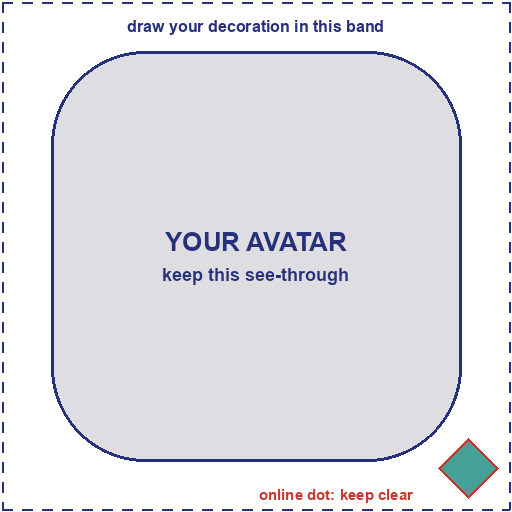
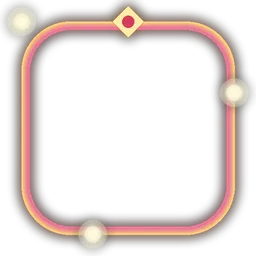
A square picture laid over your avatar, a little bigger than it. Your avatar fills its middle four fifths: in a 512 × 512 picture that is the middle 410 × 410, which leaves a band about 51 pixels wide all round to draw in.
- Keep the middle see-through, or the decoration covers your avatar.
- Avatars are squares with softly rounded corners. Draw round that shape, and let a few things overlap its edge: it looks woven in.
- The diamond that shows whether you are online sits on your avatar’s bottom right corner, above the decoration. Keep that corner quiet.
- Decorations show from the members list’s 32 pixels up to the card’s 80, so make shapes bold enough to read when small.
- Otag has a light theme and a dark one: check that yours looks good on both.
Nameplate
A wide picture behind your row in lists: the members list, your friends and your conversations. It sits at the row’s right end, as tall as the row, and fades away toward your name over a dark ground color you pick.
Names on a nameplate are drawn in cream, so the ground has to be dark enough for them to read. If it isn’t, the upload window says so and waits for a darker one.
 DenizDrawing a frame
- 600 × 120 is a good size: five times as wide as it is tall.
- The left part fades away under the name, so keep what matters on the right.
- Take the ground from the dark at the picture’s left edge, and the fade is seamless.
- A nameplate needs no see-through parts, so a JPEG works here too.


Profile effect
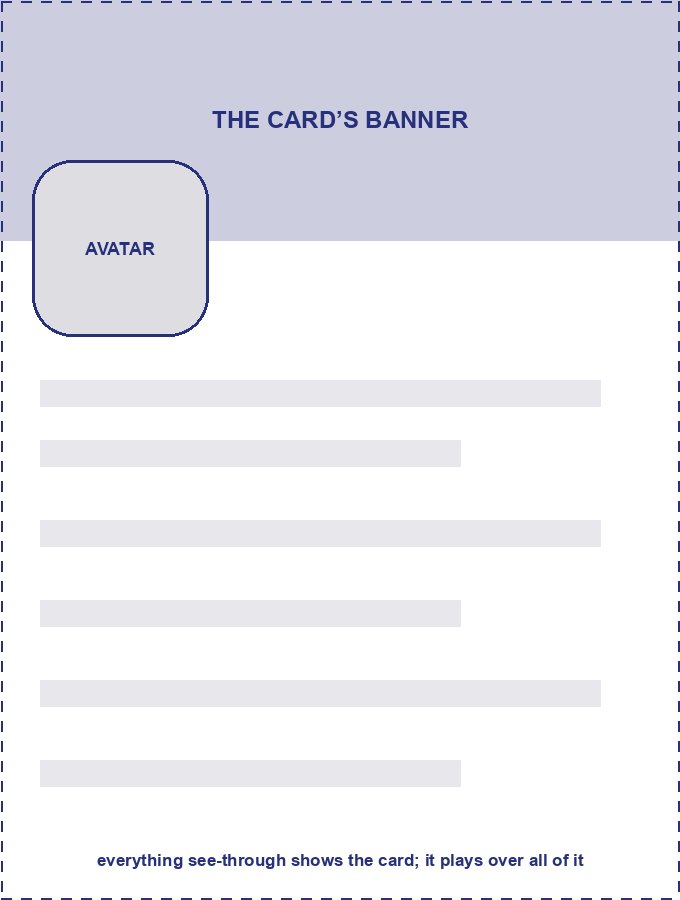
A picture that plays over your card when someone opens it, and again when they point at it. It is as wide as the card, plays for six seconds, then fades. Its see-through parts show the card, so draw only what floats over it: petals, sparks, snow.
I draw frames for my friends’ servers.
- Draw it 680 pixels wide, twice the card. Make it as tall as you like; 900 covers a whole card.
- A picture that loops keeps going for the six seconds. One that doesn’t holds its last frame until the effect fades.
- Keep the middle of the card clear, where the name and about me are; most of the motion belongs at the edges.
- People who ask their system for less motion don’t see effects.

Card frame
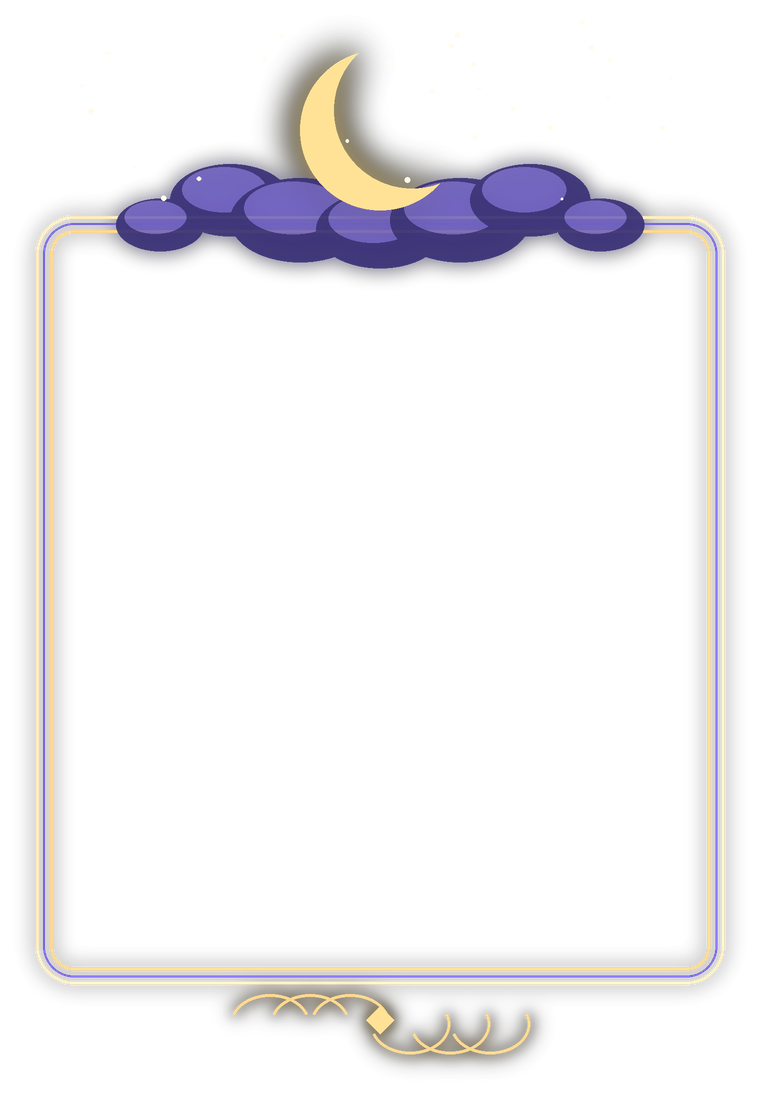
A frame drawn round your card, with room for a crest above it or a flourish below. The card’s place inside stays see-through. Cards are taller or shorter depending on what is on them, so Otag keeps your frame’s top and foot as drawn and stretches its middle to fit, or repeats it if you ask.
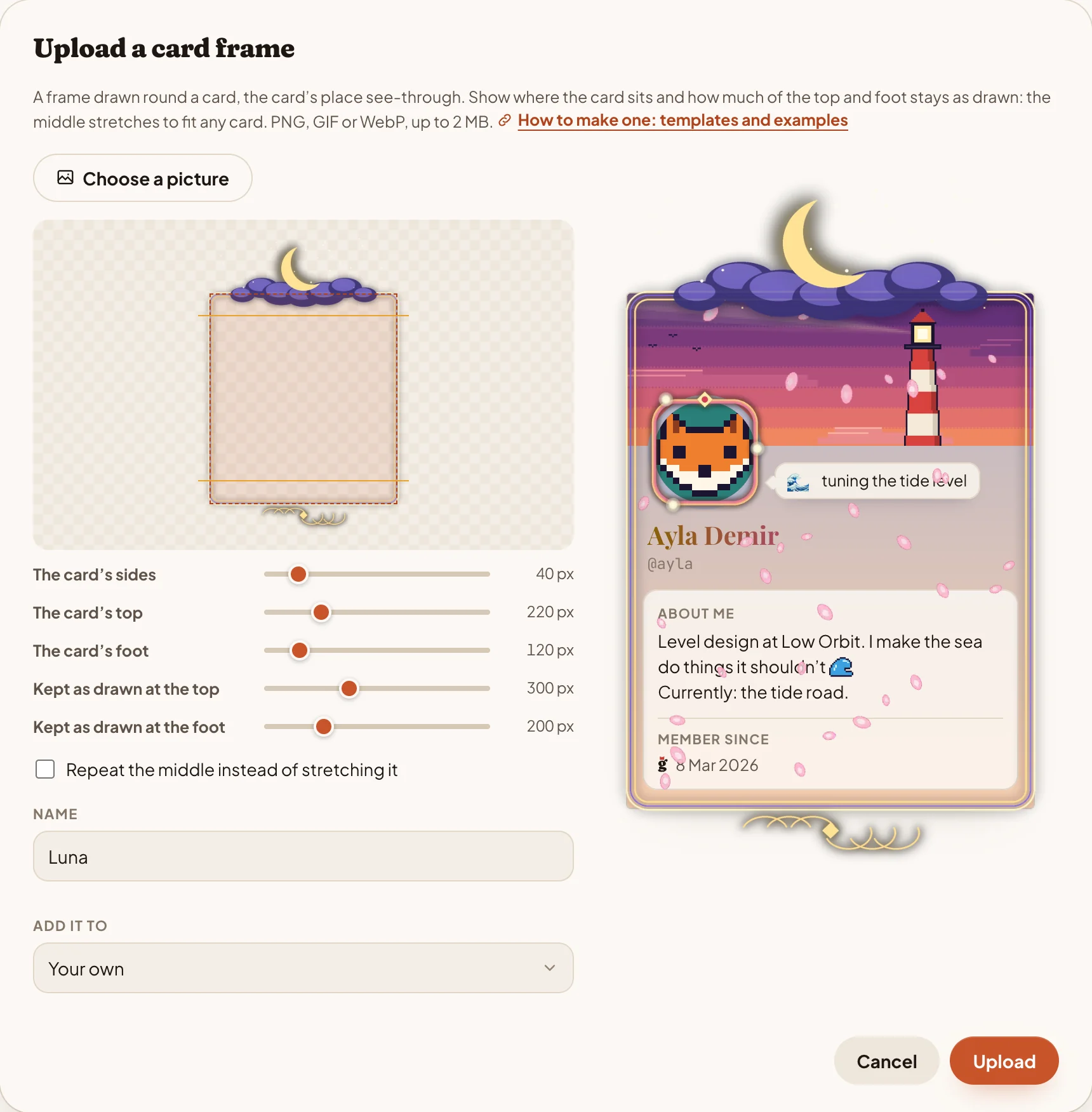
When you upload a frame, its window shows the picture with lines over it, set with five sliders:
- The card’s sides: how far in from the left and right edges the card starts.
- The card’s top and The card’s foot: how far down from the top the card starts, and how far up from the bottom it ends.
- Kept as drawn at the top and Kept as drawn at the foot: how much of the picture’s top and bottom never stretches.
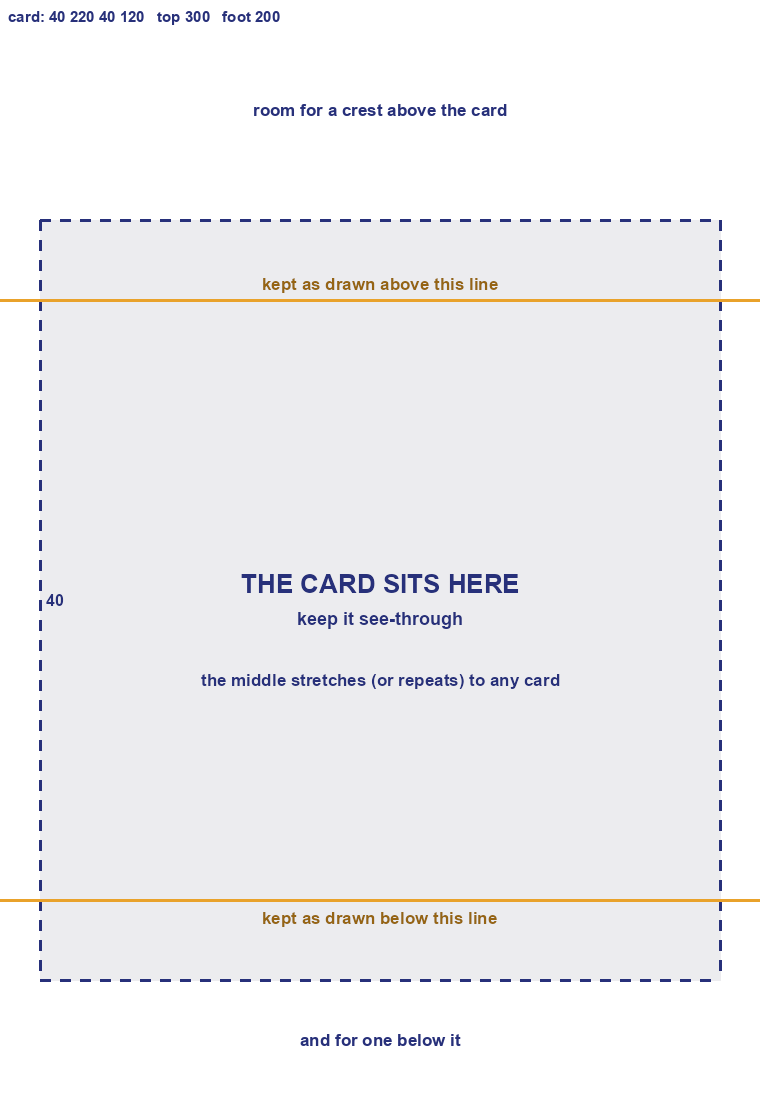
The template has its numbers written on it: sides 40, top 220, foot 120, and 300 and 200 kept as drawn. The example uses the same.
 22012040300200
I draw frames for my friends’ servers.
I draw frames for my friends’ servers.
Every server I join gets a frame of its own: a crest at the top, a flourish at the foot, and the middle left plain so it stretches.
- Draw the card’s place 680 pixels wide, twice the card. Otag scales the frame so that place fits the card, whatever you draw round it.
- Everything between the two orange lines stretches, so keep it simple there: straight sides, or a pattern.
- If the middle is a pattern, tick Repeat the middle instead of stretching it and it tiles instead.
- Leave the card’s place empty: anything drawn there covers the card.
Pictures that move
Any of the four can move: upload an animated GIF, PNG or WebP. On a card it plays; in lists Otag shows its first frame, and plays it while the pointer is on the row. People who ask their system for less motion see the first frame.
So make the first frame a good still: it is what most people see most of the time.
WebP keeps a moving picture small. The example decoration has 30 frames: about 320 KB as a WebP, and 1.3 MB as an animated PNG, too big for a decoration.
From numbered frames you drew (frame_001.png, frame_002.png and on), with the free WebP tools or ffmpeg:
# an animated WebP: 15 frames a second, 66 ms each, looping
$ img2webp -loop 0 -lossy -q 80 -d 66 frame_*.png -o decoration.webp

# or an animated PNG
$ ffmpeg -framerate 15 -i frame_%03d.png -plays 0 -f apng decoration.png
A GIF works too, but it has only 256 colors and no soft edges: its see-through parts are all or nothing.
A set for your server
A server can offer its members decorations of its own: a frame with its crest, a nameplate in its colors. Members whose role has Add emoji and decorations add to the set: in the upload window, Add it to names the server. Everyone in the server finds the set in their Decorations, under the server’s name, and can wear it everywhere in Otag.
- A server keeps up to 50 of each kind.
- Someone who leaves the server stops wearing its decorations.
- Removing one from the set takes it off everyone wearing it. Manage emoji and decorations lets someone remove anyone’s; the others can remove their own.
Good to know
- The same rules as everything else. A decoration is part of your profile, which everyone you meet sees, so Otag’s terms apply to it as to anything you post. Use pictures you have the right to use, and don’t pretend to be someone you’re not.
- Reports. Anyone can report someone from their card, and the report shows the decorations they wear. Otag’s admins can reset a profile: its decorations come off, and the ones its owner uploaded and wore are deleted.
- Yours to take with you. Decorations you upload come with your data export, and go when you delete your account.